Bills and books
Bill review
Check supplier bills and approve them for posting to QuickBooks.
Help for firms using SureCite · updated 9 November 2026 · All help pages
Before you start
Upload the bills and connect the correct client’s QuickBooks company; check its account and VAT code mappings.
Steps
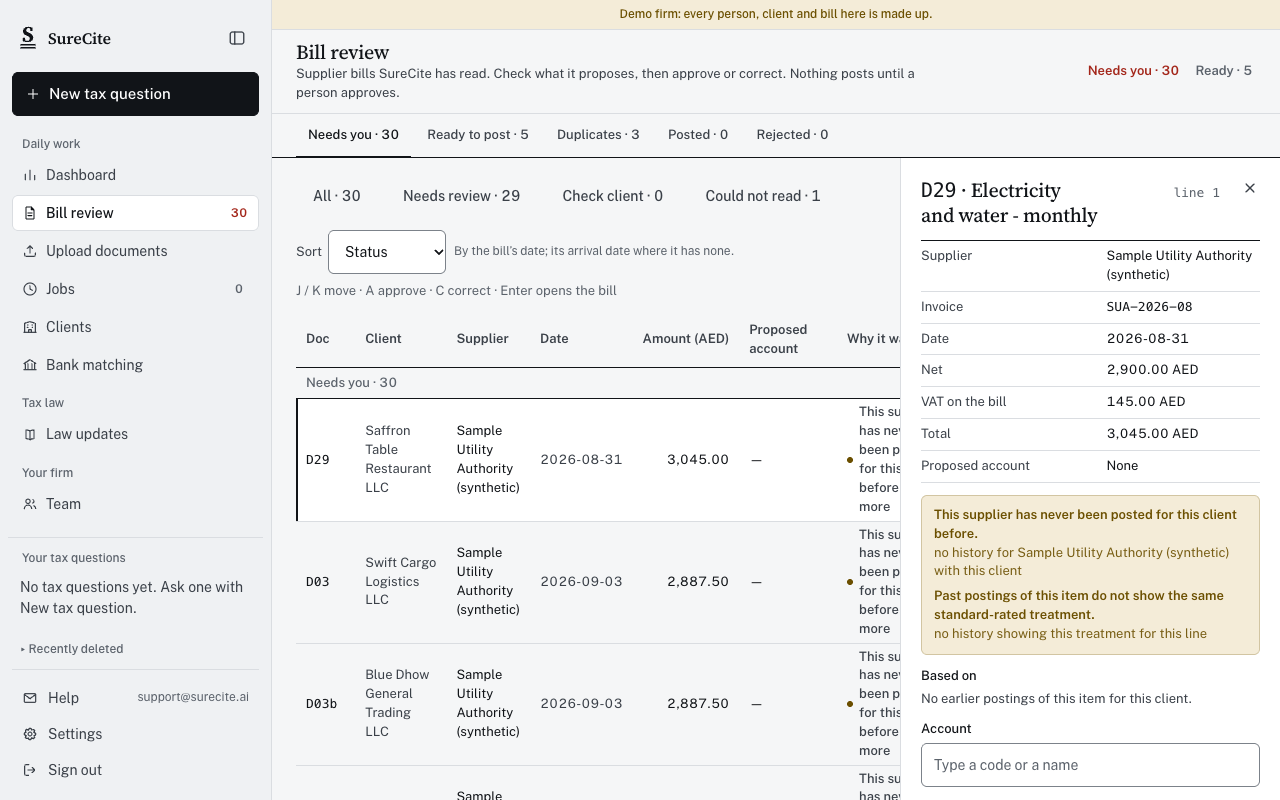
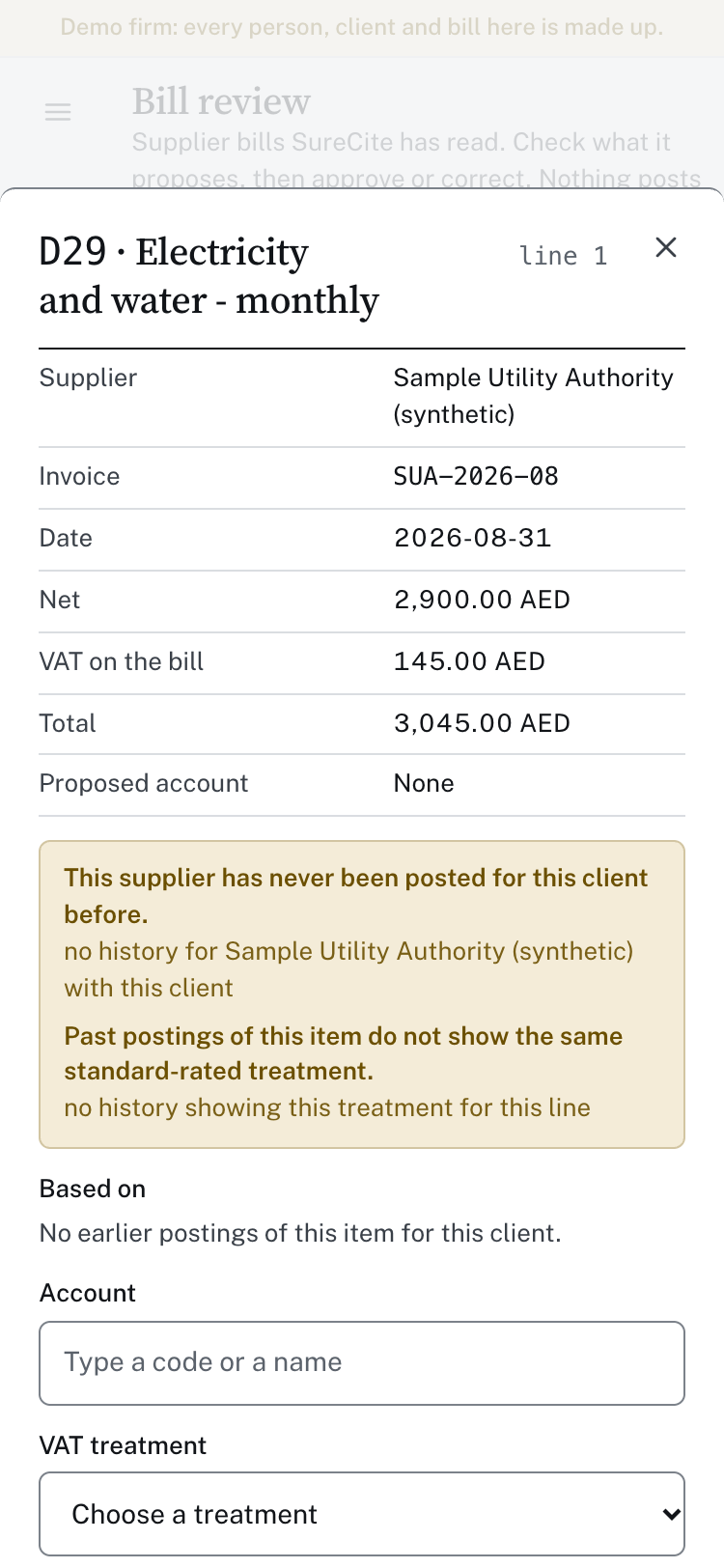
- Open Bill review and select a bill to inspect the proposed client, amounts, accounts and VAT treatment.
- Correct the proposal or resolve the reasons that need a person before approving. Inspect Tax invoice details when shown; Email the supplier prepares a draft about missing requirements. Copy it by hand into your email app.
- For a connected client with posting available, choose Approve and post. This approves the bill and posts it to QuickBooks; check the returned result.
- Check Posted for the completed bill. If posting fails, read the error before retrying.
What you will see
The proposed entries, reasons for review and the posting result. Invoice-requirement flags may identify missing supplier information.
What it does not do
Approving is not just a local tick: it posts to QuickBooks when connected and posting is available. Email drafts must be copied by hand; this page does not send email or replace professional advice.